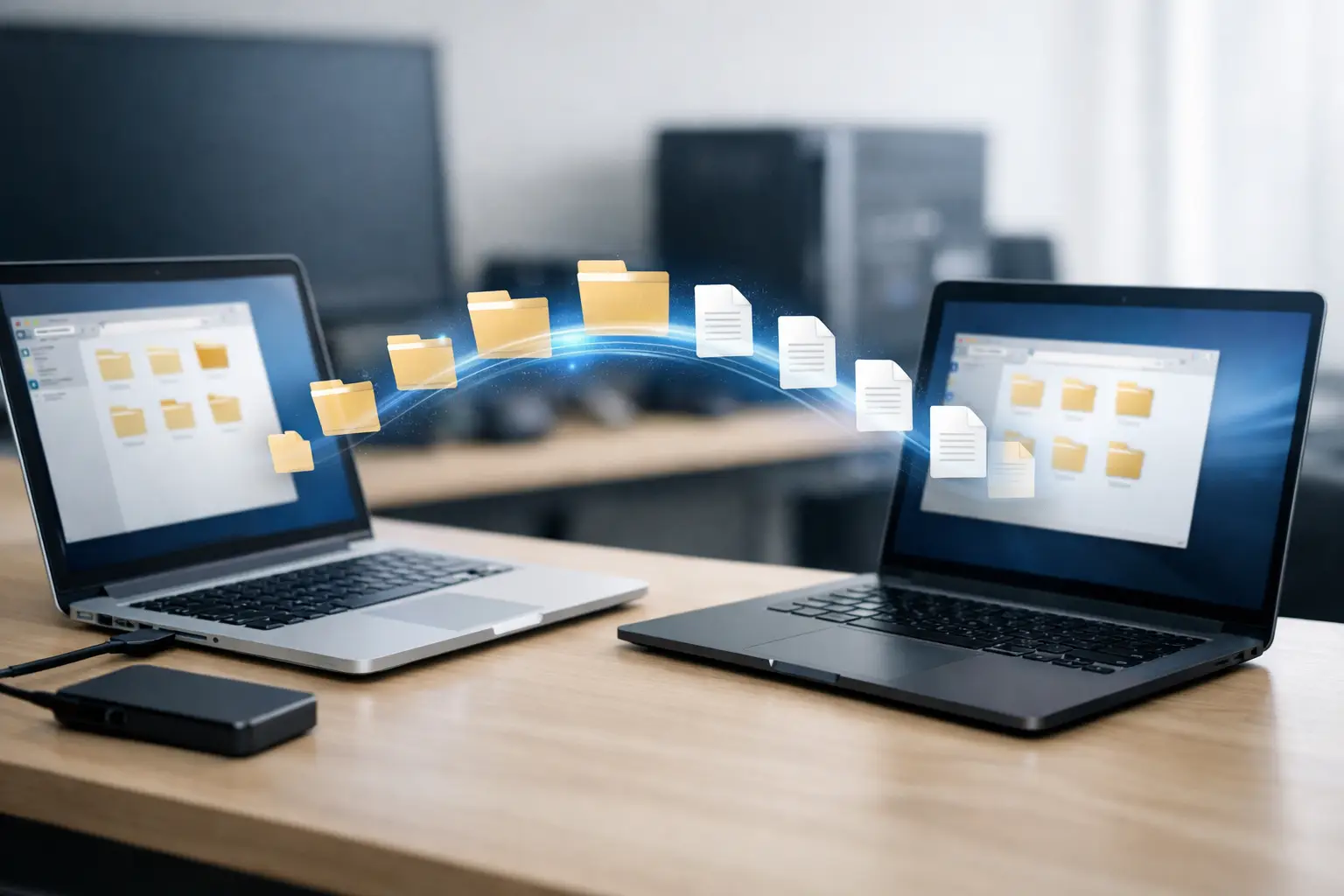
How to Transfer Files to New Computer

How to Transfer Files to New Computer

That new computer feels fast right up until you realize your documents are on the old one, your photos are scattered across folders, and the one spreadsheet you actually need is nowhere in sight. If you need to transfer files to new computer systems without losing data or wasting a full weekend, the method you choose matters more than most people expect.

For some people, this is a quick move of photos, Word files, and a few downloads. For others, it means years of business records, email archives, QuickBooks files, browser bookmarks, and a desktop full of must-keep shortcuts. The safest approach depends on how much data you have, whether the old computer still works, and how comfortable you are handling the transfer yourself.

Before You Transfer Files to New Computer Devices

The first step is less about moving files and more about avoiding mistakes. Before anything gets copied, take a few minutes to identify what actually needs to come over. Most people remember documents and pictures, but forget browser bookmarks, PST email files, accounting data, saved passwords, downloads, desktop folders, and anything stored in a custom location.

It also helps to check the health of the old computer. If the machine is making clicking noises, freezing, or failing to boot consistently, every extra restart can increase the risk of data loss. In that case, speed matters, and a careful backup should happen before any cleanup or organizing.

You should also verify how much storage the new computer has available. A transfer can fail halfway through if the new system does not have enough space for everything being copied. This is especially common when moving years of photos and videos to a laptop with a smaller solid-state drive.

Finally, sign in to the new computer and make sure it is fully updated. A stable, current system reduces errors during file transfers and helps avoid permission or compatibility issues.

The Best Ways to Transfer Files to New Computer Systems

There is no single best method for everyone. The right choice depends on your data size, your internet speed, and whether you also want to bring over settings and application data.

External hard drive or USB drive

For most home users and many small businesses, an external drive is the simplest and most reliable option. You copy your data from the old computer to the drive, then move it onto the new one. It is straightforward, does not depend on internet speed, and gives you a backup copy during the process.

This method works especially well for large photo libraries, video files, office documents, and other personal data. It is less ideal if you are trying to recreate the entire working environment exactly as it was, because programs usually need to be reinstalled separately on the new computer.

A flash drive can work for smaller transfers, but capacity becomes a problem fast. If you are moving more than a few gigabytes, an external hard drive or SSD is usually the better choice.

Cloud storage

Cloud services are convenient when your files are already synced or when you want access from multiple devices. If your old computer stores documents in a synced folder, getting them onto the new computer may be as simple as signing in and waiting for everything to appear.

The trade-off is speed and organization. Large uploads can take a long time, especially on slower home internet connections. Cloud storage also tends to expose years of messy folder habits. If the old system is disorganized, the cloud will faithfully bring that disorder to the new one.

For business data, cloud transfers can be useful, but you still want to confirm that local copies exist and that specialized files are fully synced before retiring the old computer.

Transfer over a local network

If both computers are working and connected to the same network, files can often be copied directly between them. This avoids using a separate drive and can be efficient for larger transfers inside an office or home.

This method is a little less friendly for non-technical users because sharing permissions, network discovery, and user access settings can get in the way. It is practical when everything is already set up properly, but frustrating if you are troubleshooting while trying to move data at the same time.

Drive cloning or imaging

If you want the new computer to look and feel as close to the old one as possible, cloning may be worth considering. This creates a copy of the old drive that can sometimes be migrated to a new system. It can save time in certain upgrade scenarios, especially when replacing a failed drive or moving to a newer storage device in the same machine.

But cloning is not always the best answer for a brand-new computer. Different hardware, licensing issues, and driver conflicts can create problems. In many cases, it is cleaner to transfer personal data and reinstall applications fresh.

What to Move and What to Leave Behind

A new computer is a good chance to avoid bringing years of clutter along for the ride. Not every file deserves a place on the new system.

Move your essential user data first: documents, spreadsheets, photos, videos, music, PDF files, email archives, browser bookmarks, and any specialized business files. If you use accounting software, customer databases, design files, or payroll records, make sure those are exported or backed up correctly rather than assuming they live in a standard folder.

What you may want to leave behind includes duplicate downloads, temporary files, outdated installers, and old backups stored on the desktop. If the old computer has signs of malware or heavy software problems, be careful about copying everything blindly. Bringing infected or damaged files over can create trouble on the new system.

Programs themselves usually do not transfer by simple copy-and-paste. Microsoft Office, Adobe products, QuickBooks, antivirus software, printers, and specialty applications generally need to be installed again using proper setup files and license information.

Common Problems During a File Transfer

The most common issue is assuming the transfer is complete when it is not. A folder may copy over, but hidden data, email files, browser profiles, or application-specific files can still be missing. That is why a quick spot check is not enough. Open important folders. Search for specific file names. Confirm recent documents are present.

Another problem is file path confusion. Users often save important files in unusual locations such as the desktop, downloads, or a folder created inside another program directory. If you only copy the standard Documents and Pictures folders, you may miss what matters most.

Permissions can also slow things down. If files were stored under a different Windows user profile, they may not open immediately on the new machine without the right account access. This is common in family computers and shared office workstations.

Then there is the issue nobody likes to discover late: the old hard drive is failing. If files copy slowly, disappear, or produce read errors, stop treating it like a normal transfer and start treating it like a recovery situation.

A Practical Transfer Plan for Home Users and Small Businesses

If you want the least stressful route, start by making one full backup of the old computer to an external drive. After that, identify the files you actively use and copy those into clearly labeled folders. Then set up the new computer, reinstall your needed applications, and move the data into the right user folders.

For small businesses, add one more step: verify line-of-business software and shared data before anyone starts working on the new system. Email, accounting, customer records, templates, and printer access should all be tested early. A file transfer is not really done when the files are present. It is done when the user can work normally again.

This is also where professional help can save time. If a business owner spends half a day hunting for missing mail archives or reconnecting software that stopped working after a move, the cost of doing it alone can be higher than expected. A service-focused IT provider like ICU Computer Services can help make sure the transfer is complete, the data is organized, and the new computer is actually ready to use.

When to Get Help Instead of Forcing It

If the old computer will not boot, if the drive is making unusual noises, if business-critical files are involved, or if you are dealing with years of mixed personal and work data, this is usually the point to stop experimenting. The same goes for situations involving malware, user profile corruption, or missing files that should be there but are not.

A file transfer should feel orderly. If it starts turning into guesswork, the risk goes up quickly. What begins as a routine move can become a recovery job if the wrong steps are taken.

A new computer should give you a clean start, not a new version of the same headaches. Take the transfer slowly, verify what matters, and if the old machine is unstable, treat the data like it is more valuable than the hardware – because it is.
Why Is My Laptop Overheating? Common Causes

Why Is My Laptop Overheating? Common Causes

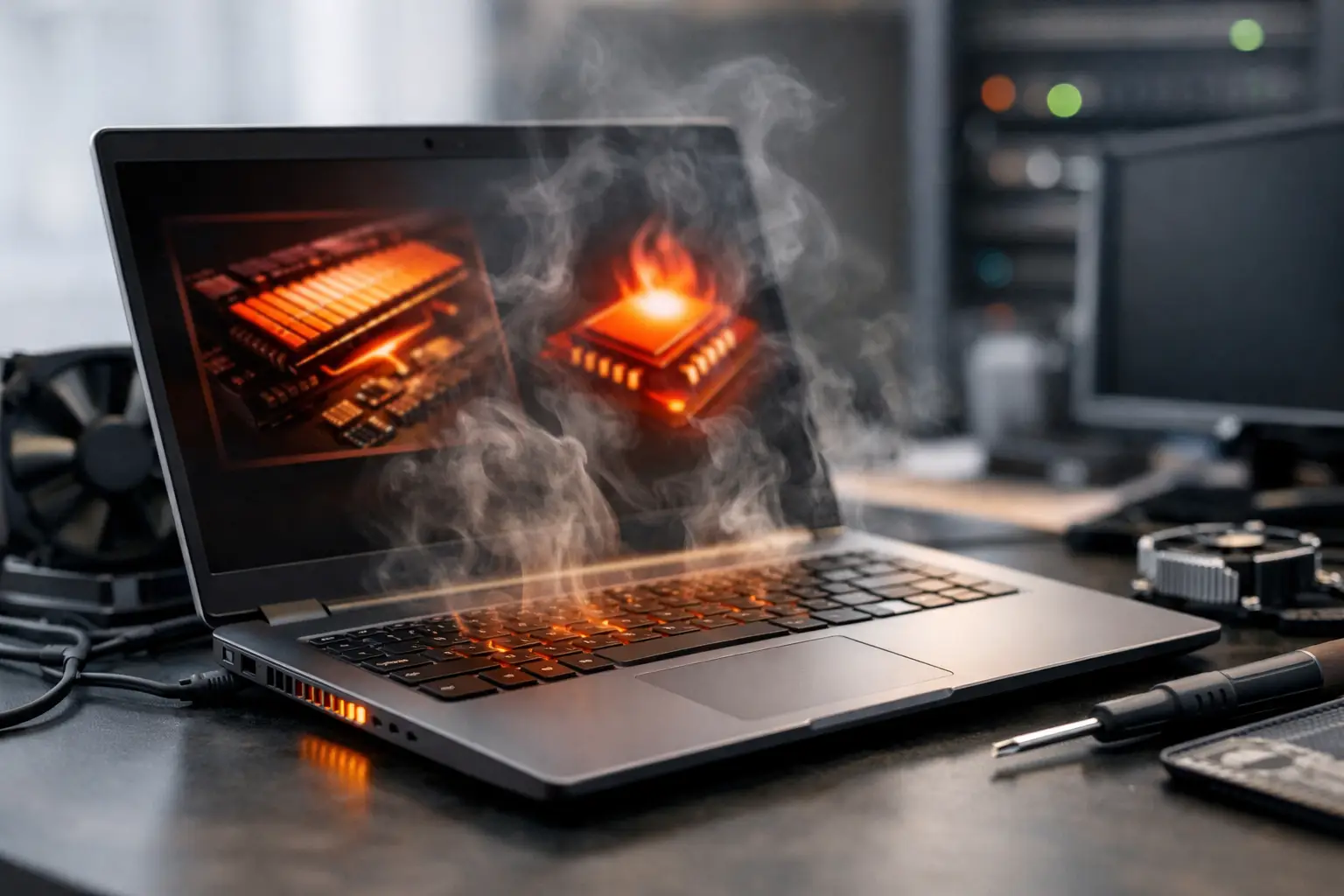
You notice the fan getting louder, the bottom of the laptop feels too hot to touch, and suddenly a simple task like email or video calls starts dragging. If you’re asking, “why is my laptop overheating,” the short answer is that heat is building up faster than the system can remove it. The bigger question is why that is happening now, and whether it points to a simple maintenance issue or a hardware problem that needs attention.

Laptop heat is normal to a point. Modern systems generate warmth any time the processor, graphics chip, battery, or storage are under load. What is not normal is constant high heat, random shutdowns, poor performance, or fans that seem to run full speed all day. When that starts happening, the cause is usually one of a few practical problems.

Why is my laptop overheating during normal use?

When a laptop overheats during light tasks like web browsing, documents, or streaming, it usually means airflow is restricted or the system is working harder than it should. Laptops are compact by design. They depend on small vents, fans, and heat sinks to move heat out of a very tight space. If any part of that cooling path is blocked or weakened, temperatures rise quickly.

Dust is one of the most common reasons. Over time, dust settles inside the fan and around the heat sink fins. That buildup acts like insulation and also reduces airflow. Even a laptop that looks clean from the outside can have enough dust inside to cause real temperature problems.

Placement also matters more than many people realize. Using a laptop on a bed, couch, blanket, or even your lap can block the intake or exhaust vents. That means the machine is recycling hot air instead of releasing it. A laptop used this way every day may overheat even if nothing inside is broken.

Another common issue is background activity. If the system is running updates, syncing large files, scanning for malware, or struggling with unwanted software, the processor can stay busy even when you are not doing much. In that case, the overheating is really a symptom of excess workload.

Common causes of laptop overheating

Dust and restricted airflow

This is the first thing we look at in many overheating cases. Dust buildup reduces the fan’s ability to move air and makes it harder for heat to escape. The result is a laptop that gets hotter, louder, and slower over time.

If your laptop is a few years old and has never been cleaned internally, dust is a strong possibility. Homes with pets, carpeted rooms, or high-dust environments tend to see this sooner.

Failing or weak cooling fan

A fan does not always stop completely when it begins to fail. Sometimes it spins inconsistently, makes grinding noises, or no longer reaches the speed needed to cool the system properly. That can create a situation where the laptop seems fine for a few minutes, then heats up fast under even moderate use.

A fan problem often gets worse gradually. People notice the noise changing first, then the performance issues, then the heat.

Old thermal paste

Inside the laptop, thermal paste helps transfer heat from the processor and graphics chip to the heat sink. Over time, that paste can dry out or lose effectiveness. When it does, heat transfer becomes less efficient and temperatures go up.

This is not something most users can see from the outside, but it is a very real cause, especially in older laptops or systems that run hot by design. Replacing thermal paste can help, but it depends on the model and whether there are other issues at the same time.

Heavy software load

Not every overheating problem starts with hardware. If your laptop is running too many startup programs, browser tabs, cloud sync tools, or resource-hungry applications, the CPU and memory stay under pressure. That extra work creates extra heat.

For business users, this can show up when accounting software, video meetings, email, and browser-based tools are all running together on an older machine. For home users, gaming, video editing, or even multiple streaming and background apps can do the same thing.

Malware or unwanted programs

If a laptop suddenly starts running hot for no obvious reason, malware should be part of the conversation. Certain infections use system resources heavily in the background. Even if you do not see pop-ups or obvious errors, the processor may be working overtime.

This is one of those issues where heat is a warning sign, not the root problem. Cleaning the vents will not solve it if the machine is still infected.

Battery or charging issues

Sometimes overheating comes from the battery area rather than the processor. A failing battery can generate excess heat while charging or during normal use. In some cases, the laptop may feel hottest near the palm rest or underside where the battery sits.

This is worth taking seriously. Battery-related heat is different from ordinary warm operation, especially if there is swelling, a chemical smell, or the chassis starts separating.

Signs your laptop is overheating beyond normal levels

Some warmth is expected, especially during updates, gaming, or video work. The problem is when the heat affects stability or usability.

Watch for fans running constantly, sudden slowdowns, screen freezes, random restarts, unexpected shutdowns, or a keyboard area that becomes uncomfortably hot. You may also notice the laptop performs well at first and then slows down after 10 to 20 minutes. That often points to thermal throttling, where the system intentionally reduces speed to protect itself.

If the laptop shuts off on its own, that is not something to ignore. It usually means temperatures are reaching a protection threshold.

What you can do first

Start with the simple checks. Move the laptop to a hard, flat surface so the vents stay open. Listen to the fan. If it sounds strained, unusually loud, or completely silent during heavy use, that tells you something. Close unused programs and restart the system to stop temporary background overload.

You can also check whether the laptop is working hard when it should be idle. On Windows, Task Manager can show if a program is consuming high CPU or memory. If one application is constantly using resources, that may be the source of the heat.

External cleaning can help a little, but internal dust is usually the bigger issue. Compressed air sometimes improves airflow, but it is not a cure-all. On some models, aggressive cleaning from the outside can push dust deeper into the system rather than removing it. That is why overheating problems often return quickly after a quick spray.

Cooling pads can help in certain situations, but they are not a fix for a failing fan, blocked heat sink, or dried thermal paste. They are best treated as support, not a solution.

When overheating points to a repair issue

If the laptop keeps overheating after basic cleanup, safe placement, and software checks, there is a good chance the problem is internal. That may mean fan replacement, professional internal cleaning, thermal paste service, battery replacement, or checking for board-level damage.

This is where the do-it-yourself route becomes less straightforward. Some laptops are easy to open, and some are not. Thin models, business ultrabooks, and certain consumer laptops can be difficult to disassemble without damaging clips, cables, or the case. If the system also has data you cannot afford to lose, it makes sense to be careful.

At ICU Computer Services, this is the kind of issue we regularly help home users and small businesses sort out. Sometimes the fix is basic maintenance. Sometimes the overheating is warning you that a component is wearing out. The key is finding out which one before the problem turns into shutdowns, failed hardware, or data loss.

How to reduce the chances of overheating again

Laptops do better when they have room to breathe and a little routine attention. Use the system on solid surfaces, keep vents clear, and do not ignore fan noise that changes over time. If performance suddenly drops or the machine starts running hotter than usual, address it early.

It also helps to keep the software side under control. Remove programs you do not use, keep security protection active, and pay attention to systems that feel busy all the time for no clear reason. Heat problems often build gradually, and catching them early is usually cheaper and easier than waiting for a shutdown or hardware failure.

A hot laptop is not always in immediate danger, but it is always telling you something. The sooner you figure out what that message is, the better chance you have of keeping the machine reliable, whether you use it for school, work, family photos, or running your business.

SSD vs HDD Upgrade: What Makes Sense?

SSD vs HDD Upgrade: What Makes Sense?

A slow computer usually does not need a full replacement. In many cases, the real question is simpler: should you choose an ssd vs hdd upgrade? That decision can change how fast your computer starts, how quickly programs open, and how reliable your day-to-day work feels.

For home users, that might mean a laptop that stops freezing every time you check email. For a small business, it might mean less waiting for files to load and fewer complaints from staff who are losing time to aging machines. Storage upgrades are one of the most practical ways to extend the life of a computer, but the right answer depends on how you use it.

SSD vs HDD upgrade: the basic difference

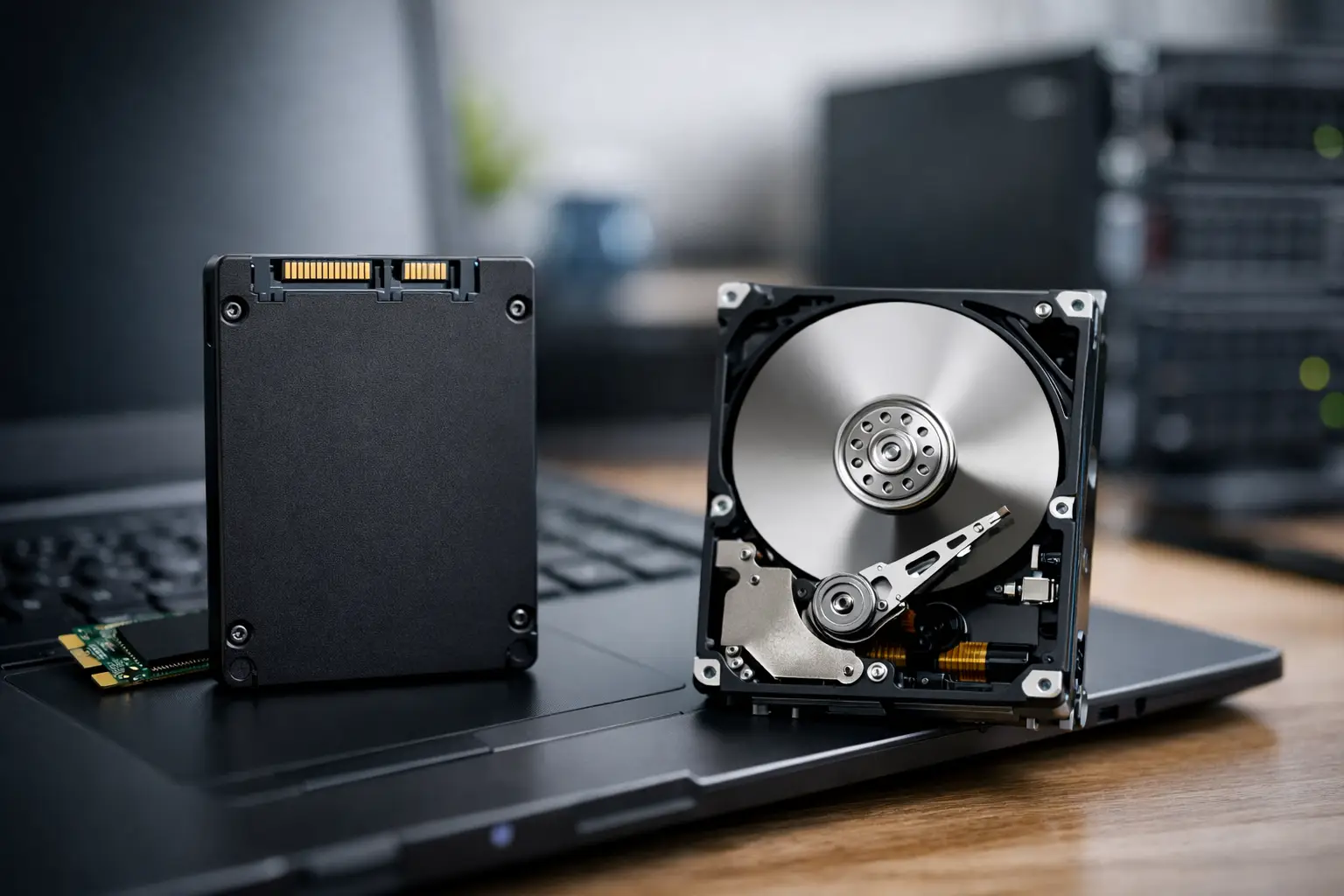
An HDD, or hard disk drive, stores data on spinning platters and uses moving parts to read and write information. It has been the standard storage option in computers for many years. Because it relies on mechanical parts, it is generally slower and more vulnerable to wear from drops, vibration, and age.

An SSD, or solid-state drive, stores data on flash memory with no moving parts. That design makes it much faster in everyday use. It also tends to be quieter, cooler, and more resistant to physical shock. When people say a computer feels new again after a storage upgrade, they are usually talking about the jump from an HDD to an SSD.

The biggest practical difference is responsiveness. An SSD reduces boot times, shortens wait times when opening software, and improves overall system feel. An HDD still has value, especially when you need a lot of storage at a lower cost, but it does not deliver the same speed.

When an SSD upgrade is the better choice

If your current computer feels sluggish but still meets your basic needs, an SSD is often the best upgrade you can make. Older desktops and laptops with traditional hard drives can see major improvements without replacing the entire system.

You will usually notice the difference in the first few minutes of use. Windows starts faster, updates install with less delay, and common programs like browsers, office apps, and accounting software open more quickly. That matters for families sharing a home computer, remote workers trying to stay productive, and small businesses that depend on systems throughout the day.

SSDs also make sense when reliability is a concern. Since there are no moving parts, they are generally less likely to fail from bumps or handling. That can be especially helpful in laptops that travel between home, office, school, and job sites.

If you are upgrading a primary computer that runs your daily routine, SSD is usually the more practical investment. It improves the experience every time you sit down to use the machine.

When an HDD still makes sense

Hard drives are not obsolete. They are still useful in the right role.

If your main concern is storage capacity, an HDD can be a cost-effective option. Large hard drives often provide much more space per dollar than SSDs. That can matter if you keep a large photo collection, years of documents, archived business records, or backups that do not need instant access.

An HDD may also make sense as secondary storage. Some desktops and a few laptops can use both drive types, with an SSD for the operating system and an HDD for bulk file storage. That setup can offer a good balance between speed and capacity.

For business use, HDDs can still be useful for local archives or non-critical file storage, but they are less ideal for the drive running the operating system and active applications. If employees are opening software and saving files all day, waiting on a hard drive adds up.

Speed is the biggest reason people switch

Most customers asking about an ssd vs hdd upgrade are really asking one thing: will this make my computer faster?

If you are moving from an HDD to an SSD, the answer is usually yes, and often by a lot. The computer may still have limits based on its processor, memory, or age, but storage speed has a major effect on everyday performance. A system with a decent processor and enough RAM can feel dramatically better once the old hard drive is replaced.

That does not mean every slow computer can be fixed with storage alone. If a machine has very low memory, overheating issues, malware, or a failing motherboard, an SSD will not solve those problems by itself. This is where proper diagnostics matter. The best upgrade is the one that addresses the actual bottleneck, not just the most popular one.

Cost, capacity, and the trade-off

The choice between SSD and HDD usually comes down to speed versus size at a given budget.

If you want the best performance, SSD wins. If you need the most storage for the lowest cost, HDD wins. That part is straightforward. The harder part is deciding what matters more for your specific system.

For many users, a smaller SSD is enough because most of the day is spent in a web browser, email, office software, and cloud-based files. In that case, speed has more value than having a huge amount of local storage you may never use.

For others, especially people storing large video files, media libraries, or years of design work, capacity matters just as much. In those situations, a larger HDD or a dual-drive setup may be the more practical fit.

A good technician will usually ask how much storage you are actually using now, how much room you expect to need later, and whether your computer supports more than one drive. Those details make the recommendation much more useful than a one-size-fits-all answer.

Reliability is not just about the drive type

People often assume SSDs always last longer and HDDs always fail sooner. Real life is a little more complicated.

SSDs do have advantages because they lack moving parts, and that helps with physical durability. HDDs are more vulnerable to shock and mechanical wear. But any drive can fail. Age, heat, power issues, poor ventilation, and simple bad luck can affect both types.

What matters most is having a backup plan before failure happens. If the data matters, it should exist in more than one place. That applies whether you use SSD, HDD, or both.

For customers with older systems, another factor matters too: if the current hard drive is already showing signs of failure, waiting too long can turn an upgrade into a data recovery situation. Slow startup, clicking noises, file errors, or frequent freezing should not be ignored.

Should you upgrade or replace the computer?

This is where experience matters. Some computers are excellent candidates for a storage upgrade. Others are already near the end of their useful life.

If the computer is still compatible with your software, has enough memory, and meets your basic needs aside from speed, an SSD upgrade can be a smart and affordable way to keep it working longer. This is common with older business desktops and personal laptops that are solid machines held back by slow storage.

If the system is very old, unsupported, physically damaged, or underpowered in several areas, replacing it may make more sense. There is no benefit in putting money into a machine that will still struggle after the upgrade.

That is why many customers prefer to have the system evaluated before buying parts. A proper assessment can tell you whether an upgrade will give real value or whether your budget is better spent on a replacement.

Getting the upgrade done right

A storage upgrade is not just about swapping hardware. The process often includes checking drive compatibility, cloning or transferring data, confirming system health, and making sure the operating system starts correctly afterward.

There is also the question of what happens to your files, programs, and settings. Some upgrades can be done by cloning the old drive so the system looks familiar when it comes back. In other cases, a clean installation is the better option, especially if the computer has software issues, corruption, or malware. The right path depends on the condition of the machine and how cleanly you want to start.

For many users, this is where professional help saves time and frustration. A service-focused shop like ICU Computer Services can help determine whether an SSD, HDD, or combined setup is the best fit and handle the move without turning it into a weekend project.

The best upgrade is not the most expensive one. It is the one that matches how you actually use your computer, protects your data, and gives you a machine that feels dependable again the next time you power it on.

How to Fix Slow Windows Startup

How to Fix Slow Windows Startup

You press the power button, walk away to make coffee, and your PC is still loading when you get back. If that sounds familiar, you are not alone. One of the most common support calls we see is from people trying to fix slow Windows startup after their computer gradually went from “a little sluggish” to “I cannot get any work done.”

The good news is that a slow startup usually has a cause you can identify. The less fun news is that there is not just one cause. Startup delays can come from too many background programs, an aging hard drive, Windows update issues, malware, failing hardware, or years of software buildup. The right fix depends on what is actually slowing the machine down.

What causes slow Windows startup?

Windows startup is not just one event. Your computer has to initialize hardware, load Windows itself, start drivers, connect services, and launch startup apps. If even one part of that chain is struggling, the whole process feels slow.

On newer systems, the biggest culprit is often startup software. Many programs install helpers that launch every time the computer turns on, even when you rarely use them. On older systems, storage is a major factor. A traditional hard drive can make boot times feel painfully long compared to a solid-state drive. If the drive is also wearing out, startup can become inconsistent, with long pauses or freezing.

There are also situations where the problem is not startup at all, but what happens right after sign-in. The desktop appears, but icons load slowly, the taskbar freezes, or programs take several minutes to respond. That usually points to background apps, update problems, or file system issues rather than the basic boot process.

Fix slow Windows startup by checking startup apps first

If you want the fastest improvement with the least risk, start here. Too many startup programs are one of the most common reasons Windows takes too long to become usable.

Open Task Manager by pressing Ctrl + Shift + Esc, then click the Startup tab. You will see programs set to launch when Windows starts, along with a startup impact rating. Look for apps you do not need immediately, such as chat tools, printer utilities, update assistants, music apps, game launchers, and cloud programs you do not actively use all day.

Disabling a startup app does not usually uninstall it. It simply stops that app from launching automatically at boot. That means you can still open it later when needed. Be cautious with security software, touchpad utilities, audio drivers, and anything you do not recognize as a core hardware function. If you are unsure, it is better to look it up or leave it alone.

A modest reduction here can make a noticeable difference. A major cleanup can make a dramatic one.

Check whether the drive is the real bottleneck

If your PC still uses a traditional hard drive, startup speed may be limited by hardware no matter how much software cleanup you do. This is especially true on computers that are several years old.

You can check your drive type in Task Manager under the Performance tab. If Disk 0 shows HDD, that is a mechanical hard drive. If it shows SSD, you already have faster storage, so the issue is more likely software, health problems, or system damage.

For systems with an HDD, an SSD upgrade is often the single best way to fix slow Windows startup. It does not just improve boot time. It also speeds up opening programs, updates, searches, and general responsiveness. For home users and small businesses trying to extend the life of a computer, this upgrade often makes more sense than replacing the whole machine right away.

That said, if the machine is very old, low on memory, or showing other hardware issues, storage alone may not solve everything. It helps most when the rest of the system is still in decent shape.

Look for Windows update and system file problems

A computer that became slow suddenly, especially after an update, may have a Windows issue rather than a hardware one. Sometimes updates get stuck, services misbehave, or system files become corrupted.

Start by restarting the computer fully, not just putting it to sleep and waking it back up. Then check Windows Update and make sure updates are either completed or not hung in a pending state. A partially installed update can drag startup performance down for days.

It can also help to run built-in repair tools from Command Prompt as an administrator. The System File Checker and DISM tools can repair damaged Windows files that affect startup and stability. These tools are useful, but they are not magic. If the problem is a failing drive, deep malware infection, or third-party software conflict, they may not change much.

If startup delays began after a specific software install, antivirus change, or Windows update, that timing matters. Troubleshooting is easier when you can connect the slowdown to a change.

Malware can absolutely slow startup

Not every slow PC has a virus, but malware is still a real possibility, especially if startup got slower along with pop-ups, browser redirects, unwanted toolbars, or strange background activity.

Malware often loads at startup so it can stay active and persistent. That means it can affect boot time directly while also using memory, processor time, and network activity after login. Some systems look like they have a performance issue when the real issue is infection.

Run a reputable antivirus and antimalware scan. If the computer is heavily infected, removal can get more complicated than a simple scan result suggests. Some threats leave behind startup tasks, damaged settings, or system instability even after the malicious files are quarantined.

For business users, this is one area where speed matters. A machine that starts slowly because of malware is not just inconvenient. It can be a security risk.

Check memory and background load after login

Sometimes Windows itself starts in a reasonable time, but the machine becomes unusable immediately after sign-in. In that case, look at memory and CPU usage in Task Manager.

If memory is constantly near full, the computer may be fighting to keep too many apps and browser tabs open with too little RAM. If disk usage remains pinned at 100 percent for long stretches, that often points to a storage bottleneck, excessive background activity, update churn, or drive trouble.

Small business users often run accounting software, browser-based tools, email, cloud sync, and security software all at once. Home users may have photo apps, backup tools, printers, and multiple browser extensions doing the same thing. None of these seem huge on their own, but together they can drag startup well past what feels normal.

This is where cleanup helps, but expectations matter. If a machine has 4GB of RAM and a hard drive, there is only so much tuning can do.

Use Fast Startup carefully

Windows includes a feature called Fast Startup that can reduce boot time by saving part of the system state during shutdown. On many computers it helps. On others, it can cause odd issues, especially after updates or with certain hardware and drivers.

If your PC has become unreliable during boot, not just slow, testing with Fast Startup turned off can be worthwhile. You may lose a little speed, but gain consistency. This is one of those settings where the best choice depends on the machine.

When slow startup points to failing hardware

A startup problem that gets worse over time, includes freezing, clicking noises, blue screens, repair loops, or random restarts may be more than software clutter. Drives fail. Memory goes bad. Power issues can also create unstable boot behavior.

If the computer sometimes starts normally and sometimes takes forever, pay attention to the pattern. Inconsistent performance is often a warning sign. Back up important files right away if you suspect hardware trouble. Performance tuning is useful, but data matters more.

This is also the point where guessing can cost time. A proper diagnostic can tell you whether the issue is software cleanup, storage failure, thermal trouble, memory errors, or a mix of problems.

A practical way to fix slow Windows startup

If you want a sensible order of operations, start with startup apps, then check for malware, confirm Windows updates are healthy, and look at drive type and drive behavior. If the system is still slow, review memory usage and hardware age. That process usually reveals whether you are dealing with clutter, corruption, infection, or an upgrade decision.

For many people, the fix is simple. For others, slow startup is the first visible symptom of a larger issue. That is why two computers with the same complaint can need completely different solutions.

If your PC is taking too long to start and you are tired of trial and error, getting it checked by an experienced technician can save a lot of frustration. At ICU Computer Services, we have seen the full range – from overloaded startup lists to failing drives and hidden malware – and the right fix is usually clearer once someone looks at the whole picture.

A computer should be ready when you are. If startup has become part of your daily delay, that is a good sign it is time to address the cause instead of working around it.

How to Remove Ransomware From Laptop

How to Remove Ransomware From Laptop

That sick feeling usually starts with a pop-up, a locked screen, or files that suddenly will not open. If you need to remove ransomware from laptop systems quickly, the first priority is not clicking around to test what still works. It is stopping the spread, protecting any recoverable data, and avoiding the common mistakes that make cleanup harder.

Ransomware is one of the few computer problems that can go from annoying to expensive in a matter of minutes. For a home user, that may mean family photos, tax documents, or school files. For a small business, it can mean invoices, customer records, and downtime that affects real revenue. The right response depends on what the ransomware has already done, whether files are encrypted, and whether the laptop is connected to anything else.

First steps to remove ransomware from laptop devices

Start by disconnecting the laptop from the internet right away. Turn off Wi-Fi, unplug any network cable, and disconnect external drives. If the laptop is connected to a home network, office network, cloud sync service, or shared folders, every extra minute online gives the infection more opportunity to spread or continue encrypting files.

Do not plug in backup drives to check your files. Do not log into banking, email, or business accounts from that laptop. And do not assume a restart will solve it. Some ransomware loads again at startup, and some fake ransomware screens are really a symptom of broader malware still running behind the scenes.

If you see a ransom note, take a photo with your phone or write down the message details. The wording, file extension changes, contact email, and payment demand can help identify the strain. That matters because some infections have known recovery options, while others do not.

Is it really ransomware?

Not every locked-up laptop has true ransomware. Sometimes a browser-based scam claims your computer is blocked and demands payment, but the files themselves are still intact. Other times malware changes file names, disables security tools, or opens a full-screen message that looks worse than it is.

A quick way to judge the situation is to check whether your actual files have changed. If documents, photos, spreadsheets, and PDFs suddenly have strange extensions and will not open, that points to file encryption. If only the browser or desktop appears locked, but files still work normally, the fix may be simpler.

That distinction matters because screen-locking scams can often be removed without major data recovery. True ransomware is more serious because the issue is not just getting back into Windows. It is whether your data can still be restored.

What not to do

When people panic, they often make the next problem bigger than the first one. Paying the ransom is the clearest example. Even when payment leads to a decryption tool, there is no guarantee it will work fully, arrive at all, or prevent future attacks. You are dealing with criminals, not a support desk.

You also do not want to start deleting random files or installing multiple cleanup tools without a plan. If the laptop contains business records, legal documents, accounting files, or irreplaceable family data, rushed cleanup can overwrite the very evidence or recoverable data you may need later.

Factory resetting the laptop too early can be another costly mistake. It may remove the visible infection, but it also wipes the system before you know whether local files, synced folders, or backups were affected. If you have important data and no verified backup, slow down before you erase anything.

Can you remove ransomware from laptop systems yourself?

Sometimes, yes. It depends on the type of ransomware, how far it got, and whether your goal is removing the malware itself or recovering encrypted files. Those are related problems, but they are not the same problem.

If the infection is limited to a scare screen or a known malware variant that security tools can detect, a skilled user may be able to boot into Safe Mode, run trusted anti-malware scans, and remove the active threat. But if files are already encrypted, removing the malicious program does not automatically decrypt your documents. The damage may remain even after the malware is gone.

For that reason, many people benefit from professional help early in the process, especially if the laptop is used for work, connected to a business network, or stores data that cannot be replaced.

Safe cleanup options

If the laptop still boots, start with isolation. After disconnecting it from all networks and external devices, shut it down if encryption appears to be actively continuing. If the attack seems finished and the system is stable enough to examine, a technician may prefer to preserve the current state long enough to identify the strain and evaluate recovery options.

A proper cleanup usually includes scanning from a trusted environment, removing malicious startup items and payloads, checking for password theft or remote access tools, and reviewing whether web browsers, email profiles, and saved credentials were exposed. This is why ransomware cases often overlap with broader security work. The visible ransom note may be only one part of the compromise.

In some cases, the cleanest path is to back up whatever unaffected data remains, wipe the drive, reinstall Windows, and restore only known-good files. That is often the best option when the infection is severe or when confidence in the operating system is gone. It takes more work upfront, but it reduces the chance of leaving hidden malware behind.

What about encrypted files?

This is where expectations need to stay realistic. If ransomware has encrypted files with strong modern encryption, there may be no direct way to unlock them without a working backup or a known decryption tool for that exact strain. Anyone promising guaranteed file recovery without seeing the system should be viewed carefully.

Still, all hope is not lost. Recovery can come from several places: offline backups, cloud backups with version history, synchronized business storage that allows rollback, shadow copies if they survived, or manual recovery of files that were never touched. Sometimes only part of the laptop is affected, and careful triage saves more data than expected.

The key is to verify backups before restoring anything. If a backup drive was connected during the attack, it may also be compromised. If cloud storage synced encrypted versions of files, you need to check version history rather than assuming the newest copy is the right one.

Small business risks are bigger than they look

For a business owner, one infected laptop can be the tip of the iceberg. The immediate problem may appear isolated, but the real issue could involve shared folders, mapped drives, saved passwords, remote desktop exposure, or email account compromise. If one employee laptop is hit, it is worth checking whether any other devices show unusual behavior.

This is one of those moments where speed matters, but so does method. Pulling the wrong machine offline too late can let damage spread. Pulling the right machine offline early can protect accounting systems, file servers, and years of customer records.

That is also why ongoing maintenance matters. Businesses with monitored security tools, tested backups, and routine patching usually recover faster than those relying on luck and a basic antivirus subscription.

When to call for help

If the laptop contains anything you cannot afford to lose, call for help before experimenting. The same goes for anyone dealing with QuickBooks files, medical records, legal documents, client data, or a work laptop connected to other systems.

A repair team can help determine whether the ransomware is still active, whether a wipe-and-reload is safer than piecemeal cleanup, and whether data recovery is still possible. For local customers in the Surprise area and for remote users who can still connect safely from a separate device, ICU Computer Services handles malware removal and practical support without making the process harder than it needs to be.

How to reduce the odds of this happening again

The best protection is not one tool. It is a few habits working together. Keep Windows and software updated, use reputable security software, be cautious with email attachments and fake invoices, and do not use an everyday account with full administrative access unless necessary.

Most of all, keep backups that are actually usable. That means at least one backup that is not always connected to the laptop and a routine for testing that your files can be restored. Backups are the difference between a bad day and a business interruption that drags on for weeks.

Ransomware is designed to make people feel trapped and rushed. You are neither. A calm, careful response gives you the best chance to protect the laptop, contain the damage, and make the next step the right one.

How to Speed Up Computer Performance

How to Speed Up Computer Performance

A computer that takes ten minutes to open email can turn a simple task into a frustrating part of the day. If you are searching for how to speed up computer performance, the good news is that many slowdowns come from a handful of common causes, and several of them can be fixed without replacing the whole machine.

The key is to work through the problem in the right order. Some computers are slow because too many programs load at startup. Others are dealing with malware, a nearly full hard drive, failing hardware, or years of neglected updates. For home users and small businesses, the best approach is practical: fix the obvious issues first, then decide whether the system needs repair, cleanup, or an upgrade.

How to speed up computer performance without guesswork

When a computer slows down, people often jump straight to buying a new one. Sometimes that is the right move, but not always. A three-year-old system that feels sluggish may only need cleanup and maintenance. A ten-year-old desktop with an old mechanical hard drive might feel dramatically better with a solid-state drive and more memory. On the other hand, if the motherboard, storage drive, and operating system are all showing their age, putting money into repairs may not make much sense.

That is why symptoms matter. If the computer is slow only when it first turns on, startup programs are a likely cause. If it freezes during normal use, low memory, malware, or drive issues may be involved. If it runs hot and gets louder over time, dust buildup or failing fans can drag performance down while increasing the risk of hardware damage.

Start with startup programs

One of the fastest ways to improve speed is to reduce what launches automatically when the computer starts. Many programs add themselves to startup without asking in plain language. Cloud sync tools, chat apps, printer software, game launchers, and update utilities all compete for attention as soon as you sign in.

Open your startup settings or Task Manager and look at what is enabled. If you do not need a program the moment Windows loads, disable it from startup. That does not uninstall the software. It simply stops it from running in the background right away. For many users, this one change cuts boot time and makes the desktop usable much sooner.

Be selective, though. Security software and hardware-related tools may need to stay enabled. If you are not sure what an item does, check before turning it off.

Free up storage space

A computer with a nearly full drive can slow down in ways that are easy to overlook. Updates may fail, temporary files pile up, and everyday tasks take longer. This is especially noticeable on older hard drives, but even modern systems can struggle when storage is crowded.

Delete files you no longer need, empty the recycle bin, and remove old downloads that have been sitting untouched for months. Uninstall programs you no longer use. If you keep a large photo or video library, moving some of it to external storage can help. For business users, archived files should be stored in a way that does not choke a primary workstation.

If the drive is full again soon after cleanup, that points to a bigger issue. Sometimes backups are duplicating locally, sync folders are set up poorly, or a program is generating oversized temp files in the background.

Check for malware and unwanted software

Malware is still a very common reason computers slow down. Not every infection announces itself with pop-ups. Some run quietly in the background, using system resources, changing browser behavior, or interfering with normal tasks.

Run a trusted antivirus and anti-malware scan and let it complete. If the browser is slow, remove suspicious extensions and reset settings if needed. Pay attention to signs like random redirects, fake alerts, unknown toolbars, or programs you do not remember installing.

There is also a less dramatic version of this problem: unwanted software. Free programs often bundle extra utilities that keep running in the background. They may not be malicious, but they can absolutely make a machine feel tired and cluttered. Cleaning those out can restore a surprising amount of speed.

Update the operating system and drivers

Updates are not only about security. They also fix bugs, improve compatibility, and sometimes correct performance problems. If a computer has gone months or years without updates, it may be working harder than it needs to.

Install pending operating system updates and restart the computer afterward. Then check major hardware drivers, especially for graphics, storage, chipset, and network components. That said, driver updates should be handled carefully. Installing random third-party driver tools often creates more problems than it solves. If the system is stable except for slowness, use official sources or get help instead of experimenting.

Watch memory and processor usage

If the computer slows down whenever you open several tabs, work in spreadsheets, or switch between programs, the system may simply be running out of memory. Open Task Manager and check whether RAM and CPU usage stay consistently high during normal use.

If memory is near its limit all the time, adding more RAM may help, especially on systems used for business applications, video meetings, bookkeeping software, or multitasking. If processor usage spikes because a single app is constantly working in the background, that app may need repair, reconfiguration, or removal.

This is one of those it-depends situations. More RAM helps only if memory is actually the bottleneck. If the real problem is a failing hard drive, overheating, or malware, a memory upgrade will not solve much.

How to speed up computer hardware when software fixes are not enough

When cleanup does not make a meaningful difference, hardware may be the reason. Older computers often slow down because one component is holding everything back.

The most noticeable upgrade for many aging machines is replacing a traditional hard drive with a solid-state drive. That change improves boot time, file access, application loading, and general responsiveness. It does not turn an old computer into a high-end workstation, but it can make an everyday system feel usable again.

Adding memory is another common upgrade, especially if the machine currently has a small amount installed. For users who keep multiple browser tabs open, run office software, and join video calls, extra RAM can reduce freezing and lag.

There are limits, though. If the computer is very old, parts may be difficult to source or not worth the cost. In a small business setting, downtime matters. Sometimes replacement is more cost-effective than trying to squeeze another year out of unreliable hardware.

Clean out dust and address overheating

Heat slows computers down. When internal temperatures rise too high, the system may reduce performance to protect itself. That can look like random lag, noisy fans, or shutdowns during demanding tasks.

Dust buildup inside vents and fans is a common culprit, especially in Arizona homes and offices where dust finds its way into everything. A proper internal cleaning can improve airflow and reduce strain on components. If fans are failing or thermal paste has dried out on an older system, more detailed service may be needed.

Users should be careful here. Light exterior cleaning is one thing. Opening a computer without the right tools or experience can lead to broken clips, static damage, or missed signs of a larger hardware problem.

When slow performance points to failing hardware

Sometimes slowness is a warning sign, not just an inconvenience. If the system freezes often, makes clicking noises, shows blue screens, or struggles to detect the drive, the issue may be a failing storage device or another hardware fault. In that case, the priority is not speed. It is protecting your data.

Back up important files as soon as possible if the computer still allows it. Continuing to use a failing drive can make recovery harder later. This is especially important for family photos, financial records, customer files, and business documents that are not stored anywhere else.

That is where professional diagnostics can save time and money. A proper evaluation can tell you whether the problem is software clutter, infection, heat, memory limits, drive failure, or a combination of issues. For many customers, that is better than replacing parts one by one and hoping something works.

ICU Computer Services regularly helps home users and small businesses sort through exactly these kinds of performance problems, whether the fix is a cleanup, repair, upgrade, or a realistic recommendation to replace the machine.

A slow computer is not always the end of the road. Sometimes it needs a few smart adjustments. Sometimes it needs hands-on repair. Either way, the best next step is the one that gets you back to reliable day-to-day use without wasting time or money.

Computer Training for Seniors That Works

Computer Training for Seniors That Works

A lot of seniors do not need more technology. They need less frustration. That is what good computer training for seniors should solve. The goal is not to turn someone into a technician. It is to help them send an email, join a video call, pay a bill safely, print a document, or find a family photo without feeling stuck.

That difference matters. Too many lessons start with terms people do not use in everyday life, move too fast, and leave the student feeling like they are the problem. In most cases, they are not. The training is. When instruction is practical, patient, and matched to real life, older adults can become comfortable with computers at their own pace.

What computer training for seniors should actually focus on

The best training starts with tasks, not theory. Most seniors are not asking how an operating system works. They want to know why the printer stopped responding, how to spot a fake email, or where a downloaded file went.

That is why effective lessons usually center on a short list of daily needs. Email, web browsing, video calls, passwords, printing, file storage, and basic online safety tend to matter more than advanced features. For some people, learning how to enlarge text and make the screen easier to read is more valuable than learning five new programs.

There is also a confidence piece that should not be overlooked. Many older adults have been told technology is simple, then blamed when it does not feel simple. Good instruction replaces that pressure with repetition, plain language, and room to ask the same question more than once.

Why seniors often struggle with computer classes

The problem is not age alone. It is usually a mismatch between the lesson and the learner.

Many classes are built for people who already know the basics. The instructor may say, “Open your browser” or “save it to the desktop” without checking whether those terms are familiar. If the class keeps moving, the student falls behind early and never catches up.

Physical comfort also plays a role. Small text, crowded screens, poor audio, shaky Wi-Fi, and fast mouse movements can turn a simple lesson into a stressful one. Some seniors prefer a desktop with a full-size monitor and keyboard. Others are working from a laptop that has never been adjusted to fit their vision or hearing needs.

Emotional friction is real too. Nobody likes feeling embarrassed. If a person worries about making a mistake, they may avoid practicing altogether. That is why a patient one-on-one approach often works better than a group setting, especially at the beginning.

A practical approach to senior computer training

The most effective way to teach computer skills is to build around one person’s routine. Start with what they already need to do this week. If they want to print tax forms, that becomes the lesson. If they need to join a doctor appointment online, focus there first.

A good session is usually narrow and repeatable. Instead of covering ten topics in an hour, it is better to cover one or two tasks clearly, then practice them a few times. Repetition builds memory. Success builds trust.

Written notes help more than many people realize. Seniors often benefit from simple step-by-step instructions they can keep next to the computer. The wording should match what appears on their actual screen. Generic instructions can create more confusion if the menu names or icons do not match.

It also helps to leave time for setup. Sometimes the training problem is really a device problem. An outdated browser, a weak internet connection, printer driver issues, pop-up clutter, or a slow machine can derail even the best lesson. In those cases, support and training need to work together.

The skills that matter most

If you are deciding where to begin, start with the skills that reduce stress fastest.

Email is often the first priority because it connects to so many other tasks, from medical portals to family communication. After that, web browsing and search basics are useful because they help people find information without getting lost in misleading results.

Security deserves special attention. Seniors are frequently targeted by phishing emails, fake virus alerts, and phone scams that claim a computer is infected. Training should cover how to recognize suspicious messages, avoid clicking unknown links, and verify whether a warning is real. This is one area where confidence and caution need to grow together.

File management is another common trouble spot. Many people do not need advanced folder systems, but they do need a reliable way to find documents, save attachments, and know whether a file is stored on the computer, in email, or in cloud storage. Even a basic understanding here can prevent a lot of frustration.

Video calling, printing, password management, and software updates round out the essentials. Not everyone needs every skill right away. It depends on how they use the computer and what keeps going wrong.

In-person or remote training – which is better?

It depends on the student and the situation. In-person training is often best for complete beginners, especially when the computer itself needs adjustment. An on-site visit can solve practical problems quickly, like connecting a printer, cleaning up a cluttered desktop, adjusting display settings, or removing suspicious software before the lesson even begins.

Remote training can work very well for seniors who are already comfortable answering the phone and getting online. It is convenient, and it allows a technician or trainer to see the screen directly and guide the person through steps in real time. For follow-up sessions, remote support is often the easier option.

The key is not choosing one method as universally better. It is matching the support style to the person. Some learners need someone sitting beside them at first. Others do fine with calm, clear help over the phone and screen sharing.

How families can help without taking over

Family members usually mean well, but they often move too fast. A son, daughter, or grandchild may solve the problem in thirty seconds and leave without explaining what happened. That gets the computer working again, but it does not build confidence.

The better approach is to slow down and let the senior do the clicking. Give one instruction at a time. Use the same words each time. If they write notes, encourage that. If they ask the same question twice, answer it twice.

It also helps to know when to step back. Some family teaching sessions become tense because both people are frustrated for different reasons. When that happens, outside help can be a relief. A calm, experienced technician can often teach the same task in a way that feels less personal and less stressful.

Signs the issue is training, support, or both

Sometimes a senior does not need a class. They need the computer fixed first.

If the machine is slow, constantly showing pop-ups, dropping the internet connection, refusing to print, or asking for passwords that no one remembers, training alone will not solve much. It is hard to learn on a computer that is not functioning properly.

That is where a service-minded approach makes a difference. The best results often come from handling both sides of the problem: making the device reliable, then teaching the person how to use it with confidence. For local families and remote users alike, that combination is often more helpful than a generic class. Companies like ICU Computer Services see this every day – people do better when the lesson is tied to a working system and real tasks, not a one-size-fits-all curriculum.

What to look for in computer training for seniors

Look for patience before anything else. Technical knowledge matters, but teaching style matters just as much. The right trainer explains things in everyday language, moves at a reasonable pace, and does not make the student feel rushed or talked down to.

Practical experience is important too. A trainer should be comfortable troubleshooting the basic issues that interrupt learning, from software confusion to printer setup to suspicious pop-ups. Seniors rarely experience technology in tidy, classroom-style conditions. Real-world support is part of real-world instruction.

Finally, look for flexibility. Some people want one lesson on email and internet safety. Others need ongoing help over time as new questions come up. Good training meets people where they are, not where someone thinks they should be.

Learning to use a computer later in life is not about catching up to everyone else. It is about gaining enough comfort to handle everyday tasks with less stress and more independence. With the right pace, the right support, and a little patience, progress comes faster than most people expect.

How to Replace a Failing Computer Hard Drive

How to Replace a Failing Computer Hard Drive

That clicking sound, the sudden freezes, the files that take forever to open – those are often the moments people realize they may need to replace failing computer hard drive hardware before it quits completely. The tricky part is that drives do not always fail all at once. Sometimes they limp along just long enough to give you a false sense of security, and sometimes they stop with no warning at all.

If your computer has started acting differently, speed is not the only issue. A failing drive can put family photos, business documents, email archives, accounting files, and software setups at risk. The good news is that replacing the drive is often very manageable if you catch the problem early and make the right choices about backup, recovery, and the type of replacement drive.

Signs you may need to replace a failing computer hard drive

Not every slow computer has a bad hard drive. Malware, low memory, software conflicts, and overheating can cause similar symptoms. Still, there are a few warning signs that deserve attention.

Frequent freezing during startup is one of the biggest red flags. If the system hangs while loading Windows, takes unusually long to reach the desktop, or keeps running disk checks after improper shutdowns, the drive may be struggling to read critical system files.

You may also notice corrupted files, folders that suddenly disappear, or error messages when opening documents that worked fine before. On older mechanical hard drives, unusual sounds matter too. Clicking, grinding, or repeated spinning noises can point to physical failure inside the drive.

For small business users, another sign is unexplained software instability on a computer that was previously reliable. If line-of-business applications start crashing, synced folders stop updating correctly, or the machine slows to a crawl whenever files are saved, the storage device should be tested sooner rather than later.

Why acting early matters

When a drive is failing, every extra hour of use can make recovery harder. That does not mean you should panic and shut everything off instantly in every case. It does mean you should stop treating the computer like normal.

If the system still boots, your first priority is usually data protection. Copy the most important files to an external drive or cloud storage right away. Focus on irreplaceable data first – documents, photos, accounting records, customer files, email exports, and anything not already backed up elsewhere.

If the drive is making harsh noises or disappearing from the system intermittently, continued use may do more harm than good. In that situation, it is often smarter to power it down and have it evaluated before trying repeated restarts.

Choosing the right replacement drive

If you need to replace failing computer hard drive hardware, the best replacement is usually a solid-state drive, also called an SSD. Compared to traditional spinning hard drives, SSDs are faster, quieter, and less vulnerable to mechanical wear. For most home users and small offices, an SSD upgrade makes the computer feel dramatically more responsive.

That said, it depends on the system and the budget. A standard hard drive can still make sense for bulk file storage, especially in desktops used mainly for archives or local backups. But for a main boot drive where Windows and everyday programs live, SSDs are usually the better long-term investment.

Capacity matters too. Replacing a 500GB drive with another 500GB drive may work fine if the old system was never close to full. If storage was constantly tight, stepping up to 1TB may save frustration later. For business machines, leaving room for growth is often worth the small extra cost.

There is also the physical compatibility question. Laptops and desktops do not all use the same drive style. Some use 2.5-inch SATA drives, some use M.2 SATA, and others use M.2 NVMe. Installing the wrong type can delay the repair, so it is important to verify what the computer actually supports before buying parts.

Clone the old drive or start fresh?

This is one of the most common questions, and there is no one answer for every case.

Cloning copies the old drive to the new one so the computer keeps the same operating system, files, settings, and installed programs. When it works well, cloning is convenient and saves time. It is often a good option if the old drive is failing but still readable, and the existing Windows setup is otherwise healthy.

A clean installation removes the old software environment and starts over with a fresh copy of Windows and newly installed applications. This takes more time, but it can be the better move if the system was already dealing with malware, software errors, years of clutter, or corrupted files. Replacing the drive will not fix deeper operating system problems unless those problems are addressed too.

For some users, the right answer is a blend of both. Recover the personal and business files, install a fresh operating system on the new drive, and then move the data back in cleanly. That approach takes more effort up front but often results in a more stable computer.

What the replacement process usually looks like

The actual job starts with diagnosis. Before swapping hardware, it helps to confirm the drive is truly the problem. Drive health tools, system logs, and hardware testing can reveal whether the issue is failing storage or something else, such as bad memory or an overheating system.

Next comes backup or data recovery. If the old drive is still accessible, files should be copied before anything else. If it is partially failed, specialized recovery steps may be needed to pull data safely.

Then the replacement drive is installed physically in the computer. On some desktops, that is straightforward. On many laptops, it can be more delicate because of compact layouts, hidden screws, fragile ribbon cables, or battery placement. Newer systems may also require BIOS or UEFI checks to make sure the new storage device is recognized properly.

After that, the drive is either cloned or prepared for a fresh operating system install. Drivers, updates, security software, and user files are restored. Finally, the system should be tested for startup time, file access, application behavior, and overall stability.

Common mistakes to avoid

One mistake is waiting too long because the computer still kind of works. A drive can remain usable right up until it is not, and the gap between inconvenience and total failure is sometimes very short.

Another mistake is assuming all data is safe because some files were copied. People often back up the obvious folders and forget saved email, browser bookmarks, accounting databases, software license details, or files stored in unusual locations.

It is also easy to focus only on the hardware and miss the reason the drive failed. Age is common, but heat, power issues, poor ventilation, or repeated hard shutdowns can shorten drive life too. If those conditions are still there, the replacement drive may not last as long as it should.

For business users, there is one more risk: downtime planning. Swapping a drive is only part of the job. If that computer runs scheduling software, point-of-sale tools, QuickBooks, or shared office files, the replacement needs to be handled in a way that gets the user back to work quickly and with the right data intact.

When professional help makes sense

Some drive replacements are simple. Others are not. If the drive contains important business records, family photos, tax files, or anything difficult to replace, expert help is often the safer path.

Professional service is especially valuable when the old drive is clicking, not showing up consistently, or causing repeated blue screens. Those symptoms can mean the situation is moving from standard replacement into data recovery territory. Trying too many do-it-yourself fixes can reduce the chances of getting files back.

This is also where experience matters for convenience. A family-owned service company like ICU Computer Services can help determine whether the drive needs replacement, whether the data can be preserved, and whether cloning or a fresh setup makes more sense for the way you actually use the computer. That practical guidance saves time and often prevents a rushed decision.

After the new drive is installed

A new drive should solve the immediate failure problem, but it is also a good time to improve your setup. Make sure backups are running automatically. Verify that antivirus protection is current. Check available storage space, install pending updates, and confirm that important accounts and software licenses are documented somewhere safe.

If the replacement drive is an SSD, you will likely notice the improvement right away. Faster boot times, quicker program launches, and less waiting on basic tasks can make an older computer useful again. Still, if the machine has very low memory or other aging hardware, storage replacement alone may not fix every performance complaint.

The best time to deal with a failing drive is before it becomes an emergency. If your computer is showing warning signs, treat them seriously, protect your data first, and make the replacement decision while you still have options.

Laptop Screen Replacement Service Guide

Laptop Screen Replacement Service Guide

A cracked screen usually happens fast. One drop, one heavy bag, or one closing lid with a pen left on the keyboard, and suddenly your laptop becomes hard to use or impossible to trust. A professional laptop screen replacement service helps restore the display without the guesswork, parts risk, or accidental damage that often comes with a do-it-yourself repair.

For home users, that might mean getting a family laptop back in service before school or bills are due. For a small business, it can mean avoiding downtime on a system that handles scheduling, inventory, email, or customer records. In both cases, the screen is not just cosmetic. It is the part of the computer you rely on every minute you use it.

When a laptop screen replacement service makes sense

Some screen problems are obvious. A panel with visible cracks, black spots, colored lines, or leaking liquid crystal usually needs replacement. If the display is physically broken, software fixes will not solve it.

Other cases are less clear. A screen may flicker, dim unexpectedly, show only part of the image, or go black while the laptop still powers on. That does not always mean the panel itself is bad. It could be a failing backlight, a damaged display cable, a hinge issue putting pressure on the connection, or a graphics-related problem on the motherboard.

That is why proper diagnosis matters. Replacing the panel without confirming the actual cause can waste time and money. A reliable repair service should test the laptop first, verify whether the problem is the screen or another component, and explain the repair path in plain language.

Common signs your screen needs replacement

A damaged screen does not always fail the same way. In some laptops, the display is completely unusable right away. In others, the damage gets worse over time.

You may need a laptop screen replacement service if you notice cracked glass or a broken panel, vertical or horizontal lines that stay on the screen, dark patches or bright spots, flickering that is not tied to software settings, or an image that appears distorted even after restarting. If the laptop works normally on an external monitor but not on its own display, that is another strong sign the issue is in the screen assembly or its connection.

Touchscreen laptops add another layer. Sometimes the image still looks normal, but the touch function stops responding or starts registering phantom touches. In that case, the repair may involve the digitizer, the full display assembly, or both, depending on the model.

What happens during laptop screen replacement service

The actual repair process depends on the laptop design. Older models often allow the panel to be replaced separately. Many newer laptops, especially slim systems and touch models, use assemblies that are more complex and more delicate to service.

A technician typically starts by confirming the exact model number and display type. That matters because screen size alone is not enough. Resolution, connector type, mounting points, refresh rate, touchscreen compatibility, and panel finish all need to match. Ordering the wrong part is one of the biggest risks in DIY repairs.

Once the correct part is identified, the laptop is carefully opened and the damaged display is removed. This can involve taking apart the bezel, disconnecting the battery, separating adhesive layers, and routing fragile cables through the hinge area. After the new screen is installed, the system should be tested for image quality, brightness control, dead pixels, touch response if applicable, and proper hinge movement.

A good repair is not just about getting a picture back. It should also make sure the laptop closes correctly, the frame is secure, and no hidden damage is left behind.

Why professional repair is often the safer choice

Online tutorials make screen replacement look simple. Sometimes it is straightforward. Often it is not.

Laptop screens are delicate, and many modern models are built with thin plastics, adhesive strips, hidden clips, and tightly packed internal components. It is easy to crack a new panel during installation, damage the webcam cable, break the bezel, strip a screw mount, or cause battery-related issues if the system is not handled properly.

There is also the question of part quality. Not all replacement screens are equal. Some aftermarket panels work well. Others may have poor color, reduced brightness, lower durability, or compatibility problems. A repair service helps reduce that uncertainty by sourcing the correct part and standing behind the work.

For business users, there is another factor: time. A repair that takes a technician a reasonable amount of time can take much longer for someone trying it for the first time. If the laptop is needed for work, the lost productivity can cost more than the repair itself.

Cost factors to expect

One of the first questions people ask is how much a laptop screen replacement service costs. The honest answer is that it depends on the laptop.

Basic non-touch screens are generally less expensive to replace than high-resolution panels, touchscreen assemblies, or premium ultrabook displays. Brand, model, screen size, and part availability all affect price. A common business laptop may have readily available parts, while a newer premium device may require a harder-to-source assembly at a higher cost.

Labor also varies based on design complexity. Some screens are relatively easy to access. Others require nearly complete disassembly. If the frame, hinges, cable, or lid are damaged too, those repairs can add to the total.

That said, screen replacement is often a worthwhile repair when the laptop is otherwise in good shape. If the device still performs well and meets your needs, replacing the display can extend its useful life and postpone the cost of a full replacement.

Repair or replace the whole laptop?

This is where context matters. If the laptop is only a year or two old and works well aside from the broken display, repair is usually the practical choice. If the system is much older, already slow, low on storage, or having other hardware issues, it may be worth comparing the repair cost with replacement.

For home users, the right answer often comes down to budget and how the laptop is used. For small businesses, it also depends on reliability. If that machine is central to daily operations, you want confidence that fixing the screen will not be followed by another major problem a month later.

A trustworthy service provider should help you make that decision honestly. Sometimes the best recommendation is repair. Sometimes it is not. Clear guidance matters more than a sales pitch.

Choosing a laptop screen replacement service

Not every shop handles screen repairs with the same level of care. Look for a provider that starts with diagnosis, explains what part is needed, and gives you a realistic timeframe. You should also expect straightforward communication about whether the repair involves a panel only or a full assembly.

Experience matters here. Laptop designs vary widely, and a technician who has worked across many brands and generations is more likely to spot related issues before they become bigger problems. Family-owned service businesses often stand out because they know repeat trust matters. Customers remember whether a repair was handled carefully and explained clearly.

Convenience can matter just as much as technical skill. Local drop-off, on-site pickup and delivery, and responsive communication make the process easier, especially when the broken laptop is part of your daily routine. For customers in and around Surprise, Arizona, ICU Computer Services fits that practical, local-first approach while serving both households and small businesses that need dependable repair help.

A few smart steps before you bring in the laptop

If the screen is damaged but the computer still runs, back up your files if you can. If the display is unreadable, you may still be able to connect the laptop to an external monitor and save important data before service. It is also a good idea to write down your password if you will need the technician to fully test the system after repair.

Do not keep forcing a cracked touchscreen closed or opening a lid with damaged hinges. Pressure can spread the damage and affect nearby parts. And if the battery appears swollen or the frame is separating, stop using the laptop until it can be checked. That is no longer just a screen issue.

A broken display is frustrating, but it does not always mean the end of the laptop. The right repair can bring the system back to normal use, protect your investment, and save you from replacing a machine that still has plenty of life left. When the diagnosis is clear and the repair is handled carefully, a new screen is often all it takes to make the laptop feel dependable again.

Data Recovery From Crashed Hard Drive

Data Recovery From Crashed Hard Drive

One bad click, one strange noise, or one laptop that suddenly refuses to boot – that is usually how data recovery from crashed hard drive situations begin. For a home user, it might mean lost family photos or tax records. For a small business, it can mean customer files, invoices, email archives, or software data that keeps daily work moving. The first few minutes matter, and the wrong move can make recovery harder than it needs to be.

A crashed hard drive does not always mean the data is gone for good. It does mean you need to slow down, stop experimenting, and figure out what kind of failure you are dealing with. Some drives have logical damage, where the files or file system are corrupted but the hardware still works well enough to read. Others have physical damage, where the drive itself is failing and every extra attempt can reduce the chance of recovery.

What data recovery from crashed hard drive cases really means

People often use the phrase “crashed hard drive” to describe several different problems. Sometimes Windows will not start, but the drive is still healthy and the issue is software-related. Sometimes the drive disappears from the computer, clicks, grinds, or spins down unexpectedly. Those symptoms point to deeper hardware trouble.

That distinction matters because the recovery approach changes. If the problem is logical, a technician may be able to create a stable image of the drive and recover files from that copy. If the problem is physical, recovery may require specialized equipment, replacement parts, or a clean room environment. Trying the wrong fix at home can turn a recoverable drive into a much more expensive case.

Signs your hard drive may have crashed

Most failed drives give some warning, although not always enough. Your computer may freeze when trying to open folders, take an unusually long time to boot, or show repeated file errors. You might hear clicking, buzzing, or grinding sounds from a desktop drive or external hard drive. In other cases, the drive may simply stop appearing in the system at all.

For small business users, another common sign is software that suddenly reports missing databases, damaged company files, or failed backups. If multiple users lose access to shared information stored on one failing device, the issue can spread from inconvenience to real downtime quickly.

What to do first

The safest first step is to stop using the drive. Do not keep rebooting to “see if it comes back.” Do not install recovery software onto the same drive. Do not run disk repair tools unless you are sure the problem is not physical. Those tools can be useful in the right case, but they also write changes to the disk, and that can overwrite recoverable data.

If the drive is external, disconnect it properly and set it aside. If it is inside a desktop or laptop and the system still powers on, shut it down. Make a note of what happened before the failure. Was there a drop, power surge, storm, liquid spill, overheating issue, or unusual sound? That information helps narrow down the cause.

If the data is business-critical or emotionally irreplaceable, this is the point where caution usually beats curiosity. The more valuable the data, the less sense it makes to keep trying random fixes.

What not to do with a crashed hard drive

There is a lot of bad advice online about failed drives. Freezing a drive, tapping it, opening it, swapping boards without proper diagnosis, or running multiple recovery programs back to back can all make things worse. Even a drive that still appears to work may be degrading in the background.

One of the most common mistakes is continuing to use a failing computer because “it still boots sometimes.” Every startup, file save, and background update adds stress. Another mistake is assuming cloud sync or a backup exists without verifying it. Many people find out too late that the backup stopped weeks ago or never included the folder they actually needed.

When DIY recovery makes sense

There are cases where a careful do-it-yourself approach is reasonable. If the drive is detected properly, makes no unusual sounds, and the problem appears to be accidental deletion, corruption, or a failed operating system, a technician may attempt a read-only recovery process or connect the drive to another system for imaging.

Even then, the goal should be to recover data with the least amount of stress on the drive. That usually means copying important files first or creating a full sector-by-sector image before trying repairs. If the drive starts disconnecting, slowing dramatically, or making noise during this process, it is time to stop.

DIY recovery makes the most sense when the data is helpful but not irreplaceable, and when the signs point to software-level damage rather than hardware failure. It is a poor choice when the drive has suffered impact damage, electrical damage, water exposure, or mechanical symptoms.

When professional recovery is the better option

Professional help is usually the right move when the drive clicks, is not recognized consistently, has visible damage, or contains data you cannot afford to lose. That includes family photo collections, legal or tax files, QuickBooks data, medical records, design projects, and business documents needed for daily operations.

A qualified technician can determine whether the issue is logical, electronic, or mechanical before trying recovery. That matters because a proper diagnosis prevents wasted time and unnecessary risk. In some cases, the best path is an in-house recovery attempt. In others, especially with severe physical damage, the drive may need specialty lab work.

For customers who are not sure where to start, a local service-focused shop can be especially helpful because you get plain-English guidance, realistic expectations, and support deciding whether recovery is worth pursuing based on the value of the data.

How the recovery process usually works

Most professional recoveries start with evaluation. The technician checks whether the drive powers up, whether it is detected by the system, and whether there are signs of mechanical or board-level failure. From there, the next step is often imaging the drive rather than working directly on the original media.

Imaging creates a clone or recovery copy so file extraction can happen with less risk. If the drive has bad sectors, advanced tools may recover readable areas first and return to unstable sections later. If the issue is logical corruption, file structures may be rebuilt enough to pull documents, photos, databases, and other user data.

If the damage is physical, the process becomes more specialized. Heads, motors, firmware, or controller issues may be involved. At that point, success depends on the condition of the platters, the extent of the damage, and whether the drive has been heavily stressed after failure.

Cost, timing, and expectations

Data recovery is one of those services where “it depends” is the honest answer. A simple logical recovery is usually faster and less expensive than a physically damaged drive. Mechanical failures, encrypted drives, large-capacity disks, and business systems with specialized file structures tend to increase complexity.

Timing also varies. Some recoveries can be completed fairly quickly if the drive is stable and the target files are clear. Others take longer because the drive must be read slowly to avoid total failure. If you need everything recovered from a severely damaged drive, expect a different timeline than if you only need one folder of critical records.

It is also worth knowing that recovery is not always all-or-nothing. Sometimes the result is partial, with the most important files intact and some damaged items left behind. A trustworthy provider will explain that upfront rather than promising miracles.

How to reduce the chance of this happening again

The best recovery plan is the one you do not need. For home users, that means backing up photos, documents, and financial records to at least one separate location and checking those backups occasionally. For small businesses, it means having a routine backup strategy, verifying that it works, and keeping more than one copy when the data matters to operations.

Drive health monitoring can help, but it is not perfect. Some drives fail with warning, others do not. Replacing aging drives before they fail, using surge protection, keeping systems cool, and paying attention to early signs of trouble can reduce risk. Laptops and external drives also benefit from the obvious but often ignored rule – avoid drops, bumps, and moving the device while the drive is active.

At ICU Computer Services, we have seen both sides of this problem: customers who acted quickly and preserved their options, and customers who kept trying until the drive gave out completely. If your hard drive has crashed, the most helpful next step is usually the simplest one – stop using it, protect what is left, and get a clear diagnosis before you do anything else.